
1. Introduction
Best Ways to Edit Family Group Photos Using Gemini AI Family group photos often capture some of our most cherished memories. Whether it’s a wedding, reunion, festival, vacation, or just a casual get‑together, these photos hold both emotional and historical value. But taking a photo together is just the first step—the editing can make a big difference in bringing out the warmth, cohesion, and lively energy of the group. With powerful AI tools like Gemini (especially recent enhancements), editing family group photos has become more accessible, flexible, and impressive. In this article, we’ll explore how to take advantage of Gemini AI to transform your family group photos—from raw snapshots to polished, heartwarming keepsakes.
2. What Is Gemini AI & What Can It Do for Photo Editing
Gemini is Google’s AI platform that includes strong image editing capabilities. Some of the key features relevant to photo‑editing are:
- You can upload your own photos and apply edits directly. Blog. Google
- Background change, object removal, adding or replacing elements are supported. Blog. Google+1
- Gemini’s updated image editing model, “Nano Banana,” focuses on maintaining likeness—so people and pets still look like themselves after edits. Blog.google+2Tom’s Guide+2
- Blending photos (combining different images or scenes) and applying styles from one image to another are now easier. Blog.google+2Analytics Insight+2
- Gemini supports multi‑turn editing—you can iteratively make changes (e.g. change one detail, then another) without ruining what’s already good. Blog. Google+1
These functionalities are particularly helpful when you have several people, different skin tones, awkward lighting, or scenes that need polishing.
3. Why Family Group Photos Are Special Challenges
Editing a family group photo is more complex than editing a single portrait. Some of the difficulties are:
- Multiple subjects: Everyone needs to look good, not just one or two people. Unbalanced brightness, shadows or colour correction can favour some faces over others.
- Varying lighting and skin tones: In a group shot, lighting may fall unevenly; skin tones will differ; shadows or mid‑tones might highlight some but wash out others.
- Posing issues: Some people may be partly blocked, squinting, looking away, or have poor posture.
- Background distractions: Unwanted objects, clutter, bright spots in the background, things that draw attention away from the group.
- Maintaining naturalness: Over‑editing (skin smoothing, overly dramatic colour shifts, unnatural posing) can make the photo look artificial or lose the emotions/sincerity captured in the moment.
Gemini’s improved tools help address many of these issues—but you still need good workflow and judgement.
4. New Features in Gemini That Make Group Edits Easier
Here are some of the newest Gemini features (especially from the DeepMind‑backed updates) that help with group editing:
4.1 The “Nano Banana” Editing Model
- Best Ways to Edit Family Group Photos Using Gemini AI Designed to maintain the likeness of people and pets even when applying style changes, changing backgrounds, or altering outfits. Blog.google+2Lifewire+2
- Helps avoid the uncanny effect where someone looks “almost” like themselves, but something feels off.
4.2 Blend, Multi‑turn Editing & Style Transfer
- Blend: Combine two or more photos so you can merge a good pose from one with lighting from another, or insert a new person or pet plausibly. Blog. Google+1
- Multi‑turn editing: Rather than doing everything in one go, you can do multiple sequential edits, checking after each step so errors don’t compound. Blog. Google+1
- Style transfer/mix-up design: You can apply colour palettes or textures from reference images—useful for styling group outfits, matching tones across the photo. Blog Google+1
4.3 Preserving Likeness: Faces, Pets, Expressions
- Gemini’s model takes special care so that faces and pets remain recognisable even when you apply big changes (hairstyles, backgrounds, styles). bBloggoogle+2Lifewire+2
- This is critical for family photos: people want the memories to look like real moments, not AI‑fantasy distortions.
4.4 Background Replacement, Object Removal & Adding Elements
- You can replace or remove backgrounds cleanly, or remove unwanted items (wires, trash, photobombers) that distract. bBloggoogle+2blog.google+2
- Also, you can add or move elements—maybe a family pet, or props, or even change a location behind them to something more flattering.
5. Preparing for Editing: Best Practices Before You Begin
Best Ways to Edit Family Group Photos Using Gemini AI Even the best tools work better with good source material. Here are prep steps that will save you editing time and improve results.
5.1 Picking the Best Raw Photo(s)
- Choose a high‑resolution image with minimal blur and good lighting.
- Try to pick images where most faces are visible and unobstructed.
- If multiple shots are taken, pick a few strong ones for comparison. Sometimes blending multiple can help.
5.2 Good Poses, Arrangement & Lighting in the Shoot
- Arrange people so that heights and positions are balanced. Taller people in the back, shorter in the front. Use a staggered formation or a V‑shape. Canva+1
- Make sure faces are not blocked, hands or limbs aren’t awkwardly placed.
- Use good lighting: diffused natural light (soft), avoid harsh direct sunlight if faces will squint; if indoors, ensure even light. Main Website+1
5.3 Taking Multiple Shots & Checking for Blinks, Obstruction
- Use burst mode or take several shots so you can pick the best expressions. Main Website
- Before leaving the shoot, scroll through and check if someone is blinking, looking away, or obstructed. If yes, retake.
6. Step‑by‑Step Editing Process Using Gemini AI
Here’s a suggested workflow using Gemini for editing family group photos.
| Step | What to Do | Why It Helps |
|---|---|---|
| 6.1 Upload & Initial Assessment | Upload the raw image(s) into Gemini; look over the lighting, composition, and what distractors are present. | Helps you know where to focus: faces, background, distracting elements, etc. |
| 6.2 Set Goals | Decide what you want: remove objects? Change background? Improve colour matching? Make everyone look coherent? | Having clear goals helps avoid over‑editing or losing a natural look. |
| 6.3 Background / Object Tools | Use Gemini’s tools to remove unwanted objects, adjust or replace the background. Make sure edges around heads & body are clean. | Removes distractions; gives a neat, pleasing frame. |
| 6.4 Working on Faces & Maintaining Likeness | Use Gemini’s likeness preservation features. If needed: touch up skin (lightly), brighten eyes, adjust shadows, and even out skin tones without over‑smoothing. | Keeps family members looking recognisable, avoiding the “plastic” or “over‑filtered” look. |
| 6.5 Styling, Colour Correction & Tone Matching | Use colour grading, style transfer if you have reference styles. Match tones across faces, clothing, and background so the photo feels unified. Adjust contrast, brightness, hue, and saturation carefully. | Ensures the image is visually cohesive so one person or one outfit doesn’t “pop” unnaturally. |
| 6.6 Final Polishing | Crop or straighten the image if needed. Sharpen slightly. Remove last distractions or tiny inconsistencies. Check the photo at different sizes (phone, print) to ensure it still looks good. | Final touches that make the difference between “good” and “great.” |
7. Common Mistakes to Avoid When Editing Group Photos
- Over‑editing one face (too much brightness, smoothing) while leaving others natural → creates imbalance.
- Using heavy filters that distort skin tones or lose detail
- Forgetting to preserve likeness (especially of children, older family members)
- Inconsistent lighting or shadows left uncorrected
- Cropping awkwardly: cutting off limbs, heads, losing context
- Background changes that look unnatural or cut‑out edges that reveal editing
8. Photo Prompts & Ideas: Inspirational Edits Using Gemini
Best Ways to Edit Family Group Photos Using Gemini AI Here are some creative prompts & ideas to try with family group photos using Gemini:
- Create a classic studio portrait: neutral background, everyone dressed in coordinated but not identical outfits, soft lighting, warm tones.
- Make it mood‑based: golden hour lighting outdoors; sunset/sunrise background; warm gradient tones.
- Generate theme portraits: traditional costumes, festival attire, vintage style (70s, 80s) or cultural‑heritage theme.
- Try candid & lifestyle blends: one image of a family sitting together, another of laughing/playing, blend the best expressions.
- Reimagine location: imagine your family at your favourite place (beach, snowy mountain, forest) and replace the background accordingly.
These prompts work nicely with Gemini’s blend/multi‑turn editing and style transfer features.
9. Ethical & Aesthetic Considerations: Authenticity vs Perfect Image
It’s tempting to make every photo “perfect”—but sometimes the little imperfections are what make a family photo special. Here are some things to think about:
- Authenticity: Smiles, expressions, and small quirks tell stories. Too much editing can sterilise emotion.
- Consistency: If you edit many family photos (e.g. for an album), maintain a consistent style or tone so the collection feels cohesive.
- Honesty & Representation: Be mindful of skin tones—don’t over-whiten or lose natural texture. Keep identity and character.
- Consent & Memory: Particularly with children, elders, or other subjects, ensure people are okay with edits (e.g. large changes). A group photo is part memory, part art.
10. Conclusion
Family group photos are more than just images—they’re memories, emotions, moments frozen in time. With the latest tools in Gemini AI, especially updates like the Nano Banana model, blend/multi‑turn editing, and improved background/likeness preservation, you can take your raw family photos and turn them into truly beautiful keepsakes.
The key is balancing technical edits with respect for authenticity: arrange well, shoot well, edit thoughtfully. If you follow the practices above, each member of the family will shine—not just as individuals, but as part of the connected, loving whole.
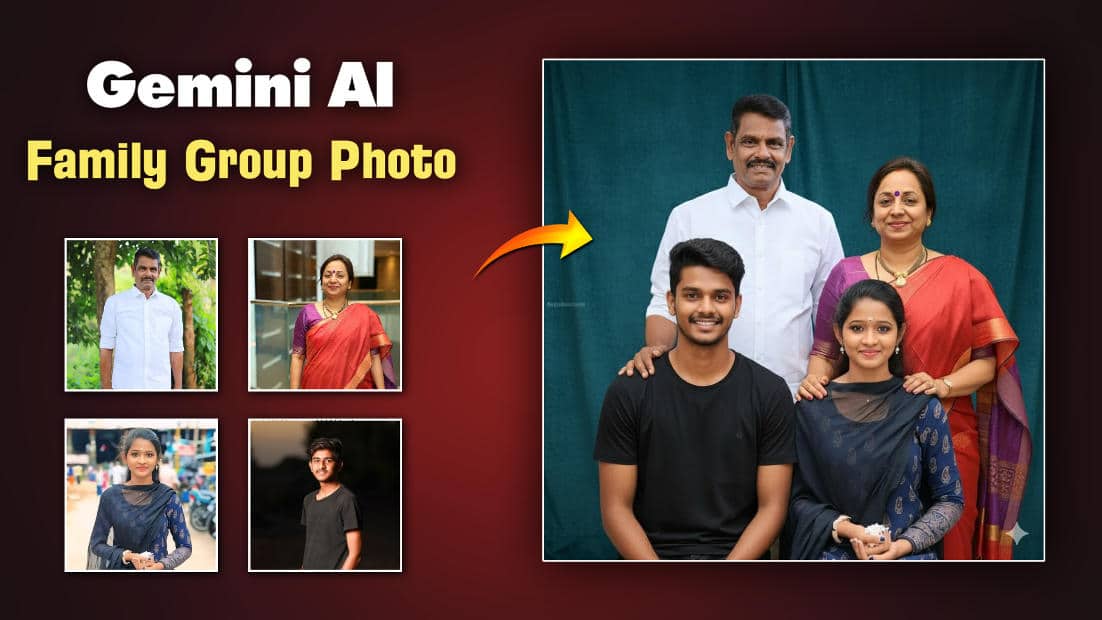
Prompt
Generate a realistic South Indian family group photo with I send u above all members. Use the same outfits from the uploaded photos. Place younger members in the front and older members (like parents) behind them. One elder can gently place their hand on the younger’s shoulder. Set the scene in a traditional photo studio with soft lighting and a curtain or plain background. Everyone should be smiling and looking at the camera. Keep the style authentic, respectful, and culturally South Indian.