
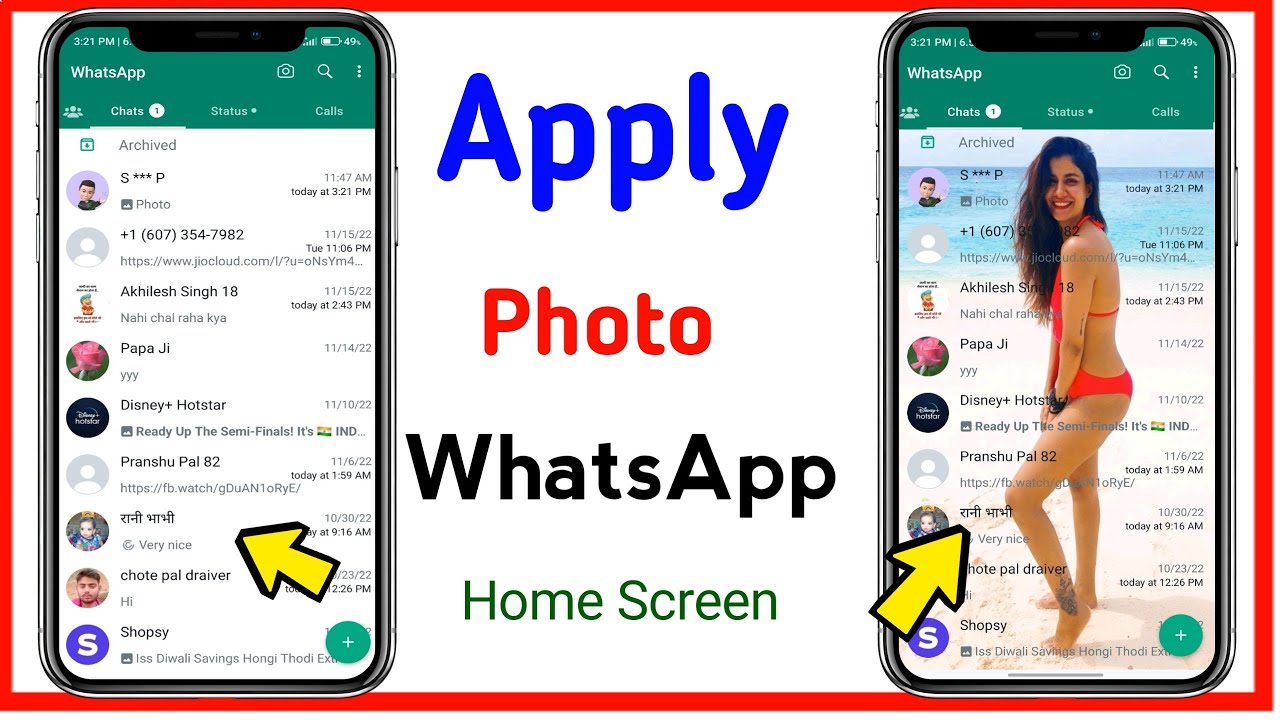
1. What Is the WhatsApp Home Screen and Can You Change It?
WhatsApp Home Screen Photo Set The first step in understanding how to set a photo in WhatsApp Home screen is knowing exactly what the WhatsApp Home screen means. When you launch WhatsApp, the application opens its main interface, where you can access conversations and other WhatsApp features. Depending on your device and current WhatsApp version, the interface can include areas for chats, updates, calls, communities, profile controls, and other functions.
Many online searches use the phrase WhatsApp Home screen wallpaper when they actually mean the background inside WhatsApp conversations. These are two different things. WhatsApp gives users customization features for chat backgrounds and themes, but it does not generally provide a standard option to completely replace the entire WhatsApp interface with a personal photograph.
If your goal is to see your favorite picture behind your WhatsApp messages, you should look for the wallpaper or chat theme settings. This is the official way to customize the visual appearance of your conversations. You can select a suitable background and use it while chatting with contacts or groups.
On the other hand, if you mean the actual Android or iPhone Home screen, that is controlled by your phone’s operating system. Changing the phone wallpaper will not automatically change your WhatsApp chat background.
This distinction is important because many tutorials available online use similar terminology. Before following a tutorial, identify whether it is showing how to change the smartphone wallpaper or how to change the WhatsApp chat wallpaper.
WhatsApp also changes its interface and features through updates. Therefore, the exact names of menus may be different depending on your device, operating system, and application version. If you do not see an option in exactly the same location as an older tutorial, check the current WhatsApp settings and update the app through your official app store.
2. How to Set a Photo in WhatsApp Home Screen Using Wallpaper
If you want to use your own photograph inside WhatsApp, the most practical method is to use the application’s wallpaper or chat customization feature. This allows you to personalize your conversations without modifying the WhatsApp application itself.
WhatsApp Home Screen Photo Set Start by opening WhatsApp on your smartphone. Go to the WhatsApp settings section and look for the Chats settings. Depending on the version you are using, you may find an option related to Wallpaper, Chat Theme, or conversation appearance.
Open the relevant customization option and look for the choices provided by WhatsApp. You may see several built-in wallpapers, colors, or other background options. If your version supports personal images, look for the option that allows you to choose a photograph from your device’s gallery or Photos library.
Select the image you want to use. If WhatsApp requests permission to access photographs or media on your phone, provide the appropriate permission. You can then browse your gallery and choose your favorite picture.
After selecting the image, WhatsApp may display a preview. Take a moment to check how the photograph looks behind the chat interface. A photograph with too many details can make message text difficult to read, so a simple or slightly darker image can often provide a better experience.
Once you are satisfied with the preview, apply the wallpaper or theme. Open a WhatsApp conversation and check whether the photograph is displayed correctly.
This is one of the easiest ways to personalize WhatsApp with a family photograph, travel picture, nature image, custom wallpaper, or another personal image.
However, remember that the wallpaper feature primarily affects the chat interface. It does not necessarily replace the entire WhatsApp Home screen or every element of the application’s user interface.
3. How to Set a Photo as WhatsApp Wallpaper on Android
Android users can personalize WhatsApp using the customization features available in their current application version. Since Android phones are manufactured by many companies, the surrounding phone settings can differ between Samsung, Xiaomi, Redmi, OnePlus, Vivo, Oppo, Realme, Motorola, and other devices. However, the WhatsApp process is generally similar.
First, open WhatsApp on your Android smartphone. Enter the Settings section and select the Chats option. Look for Wallpaper, Chat Theme, or another option related to the visual appearance of conversations.
When you open the wallpaper settings, WhatsApp may provide a selection of built-in backgrounds. If your version supports personal photographs, select the option for choosing an image from your phone.
Your Gallery or Photos application should then appear. Browse through your photographs and choose the image you want to use as your WhatsApp background.
Preview the photograph carefully. If the image is very bright, WhatsApp message bubbles may not be easy to read. Similarly, an image with lots of small objects can make the chat look visually busy. A clean photograph with darker or softer areas can provide a better background.
Apply the selected image after checking the preview. Then open a WhatsApp chat to confirm that the background has changed.
If the image does not appear, check WhatsApp’s permissions. Go to your Android phone’s application settings, find WhatsApp, and review its photo or media permissions. The exact permission names depend on your Android version.
You should also make sure WhatsApp is updated. Older versions may have different wallpaper settings compared with current versions. If an online tutorial shows a menu that you cannot find, it may have been created for an older release.
Android users should also avoid installing unofficial WhatsApp modifications just to obtain additional wallpaper effects. Using the official application and its built-in customization tools is a safer approach for protecting your conversations and account.
4. How to Set a Photo in WhatsApp on iPhone
If you use an iPhone, you can also customize WhatsApp conversations using the options available in your current WhatsApp version. The interface is slightly different from Android, but the basic idea is the same.
Open WhatsApp on your iPhone and enter the Settings section. Find the Chats settings and look for the wallpaper, chat theme, or appearance customization options available in your version.
If WhatsApp allows you to select a personal image, choose the option that lets you access your Photos library. Select the photograph you want to use as the background.
iOS may ask you to grant WhatsApp access to your photographs. If you want WhatsApp to use a particular picture from your Photos library, make sure the application has the appropriate photo permission.
After selecting your image, preview it before applying the change. Check whether the image makes the messages easy to read and whether the important parts of the photograph are visible.
Once you apply the background, open one of your WhatsApp conversations and check the result.
If you want to customize a particular conversation instead of applying one background generally, open that chat and check its available customization options. Depending on the current WhatsApp version, individual chat appearance settings may be available.
It is worth remembering that WhatsApp wallpaper and iPhone Home screen wallpaper are completely different. If you change your iPhone Home screen wallpaper, it affects the iOS Home screen. It does not automatically change the background inside WhatsApp.
For the best experience, use the official WhatsApp application and keep it updated. WhatsApp frequently changes its interface, so the location and wording of customization settings can change over time.
5. How to Set Your Own Gallery Photo as WhatsApp Background
WhatsApp Home Screen Photo Set One of the biggest reasons users search for how to set a photo in WhatsApp Home screen is because they want to use a picture stored in their phone gallery rather than one of WhatsApp’s default backgrounds.
A personal gallery image can be a family photograph, wedding picture, favorite travel photo, nature photograph, pet image, festival picture, customized graphic, or another image you enjoy. Using your own photo gives WhatsApp a more personalized appearance.
To start, make sure the photograph is already saved on your smartphone. Open WhatsApp and navigate to the relevant chat or chat appearance settings. Look for the wallpaper or theme option available in your current version.
Choose the option that lets you select an image from your device. Find the photograph in your gallery and select it.
Before applying it, check the preview carefully. WhatsApp message bubbles will appear over the image, so parts of the photograph may be hidden. If your main subject is located directly in the middle of the photograph, messages could cover it.
You can improve the result by cropping the image before using it. A portrait-oriented photograph is often more suitable for modern smartphone screens because most phones use a tall display.
If your photograph is too bright, you can also edit a copy of it before setting it as wallpaper. Slightly reducing brightness or adding a subtle dark overlay can help make message text easier to read.
Avoid using images containing private documents, bank details, passwords, identification information, or other sensitive information. Even though the wallpaper is primarily a visual setting on your device, privacy should always be considered when selecting personal photographs.
Once you have selected and applied your preferred image, open WhatsApp chats and check the final appearance. If you do not like the result, you can return to the wallpaper settings and choose another image.
6. How to Set Different Photos for WhatsApp Chats
Another useful way to customize WhatsApp is by using different backgrounds for different conversations when the feature is available. Instead of using one photograph everywhere, you can personalize individual chats according to your preference.
For example, you may want one family photograph for a family conversation, another picture for a friends group, and a simple background for work-related conversations. Individual chat customization can make WhatsApp feel more personal and visually organized.
To do this, open the WhatsApp conversation you want to customize. Access the chat information or appearance settings and look for the wallpaper or theme customization option.
Select the desired photograph and apply it to that conversation. Then return to the chat and check whether the background has changed.
If the feature is available in your current WhatsApp version, you can repeat the process for other conversations.
Different backgrounds can also make it easier to visually distinguish between important chats. However, this is only a visual customization feature and should not be confused with WhatsApp’s privacy or security settings.
When choosing personal photographs, remember that someone looking at your phone could potentially see the image whenever that conversation is open. For this reason, avoid using photographs that contain information you do not want displayed publicly.
WhatsApp may introduce, rename, or change individual chat customization features through future updates. If your phone does not show the option described in an older guide, check the latest WhatsApp version and its current settings.
7. Best Photo Size and Background for WhatsApp
Selecting the right photograph is just as important as knowing how to set a photo in WhatsApp Home screen. A technically supported image may still look poor if its composition, brightness, or dimensions are unsuitable for a chat background.
Modern smartphones typically have tall portrait displays. Therefore, portrait-oriented photographs can often work well as WhatsApp wallpapers. High-resolution images generally provide better quality, although extremely large files are not necessarily required.
A good WhatsApp background should allow messages to remain clearly visible. Avoid photographs with extremely bright white areas directly behind message text. Similarly, images containing lots of patterns or small details can make the chat interface appear cluttered.
Nature photographs, blurred backgrounds, dark gradients, simple family photographs, abstract designs, and soft-color images can work well. If you want to use a family picture, consider choosing a photograph where the faces are positioned away from areas that will be covered by message bubbles.
You can also prepare a photograph before setting it as your WhatsApp background. Basic editing tools can be used to crop the image, adjust brightness, reduce contrast, or create a subtle blur.
Do not over-edit your photograph if you want to preserve its natural appearance. The goal is to create a background that complements the WhatsApp interface rather than competing with the messages.
Another useful tip is to keep a backup copy of your original photograph. If you edit an image specifically for WhatsApp, create a separate copy rather than permanently modifying the original.
By choosing the right image, you can create a WhatsApp background that looks clean, modern, and personalized without affecting the readability of your messages.
8. WhatsApp Photo Wallpaper Not Showing? Try These Fixes
WhatsApp Home Screen Photo Set Sometimes users follow the correct steps but their selected photograph does not appear as expected. If your WhatsApp background is not changing, there are several simple troubleshooting steps you can try.
First, check whether you changed the correct setting. A wallpaper applied to one individual chat may not automatically appear in every conversation. If you expected the image to appear everywhere, check the default chat appearance settings available in your WhatsApp version.
Next, verify your phone’s permissions. On Android, open the application settings for WhatsApp and review photo or media access. On iPhone, review WhatsApp’s Photos permission through the iOS Settings application.
If the photograph is missing from the selection screen, make sure the image is actually saved in your phone’s Photos or Gallery application. Try selecting another photograph to determine whether the issue is related to one specific file.
Updating WhatsApp can also help. Application updates may include bug fixes and changes to customization features. Always download updates through the official app store for your device.
You can also restart your phone and reopen WhatsApp. Temporary application or system issues can sometimes affect the display of settings.
If you are using an older phone or older operating system, some newer WhatsApp features may not be available. Check whether your device supports the latest WhatsApp version.
Avoid downloading unofficial WhatsApp versions that claim to unlock hidden wallpaper features. These applications can create unnecessary privacy and security risks. If the official application does not provide a specific customization feature, it is generally better to use the supported alternatives.
If your wallpaper appears blurry, try using a higher-quality photograph. If it appears too bright, edit a copy of the image before applying it. If the subject is cut off, use a different crop or a portrait-oriented image.
9. WhatsApp Home Screen Wallpaper vs Phone Home Screen Wallpaper
The phrase WhatsApp Home screen wallpaper can be confusing because WhatsApp and your smartphone have separate wallpaper systems. Understanding the difference can save you time when searching for customization instructions.
Your phone’s Home screen is the interface you see after leaving an application. On Android and iPhone, you can normally choose a wallpaper through the phone’s built-in settings. That wallpaper belongs to the operating system.
WhatsApp’s chat background, meanwhile, belongs to the WhatsApp application. Changing your phone’s Home screen wallpaper does not automatically change the background inside WhatsApp conversations.
For example, if you set a photograph of your family as your Android Home screen wallpaper, that photograph will appear on your phone’s Home screen according to your wallpaper settings. WhatsApp will continue using its own chat background unless you separately change it.
App Here
Similarly, if you set a photograph as your WhatsApp chat wallpaper, it will not automatically become your iPhone or Android Home screen wallpaper.
If you want the same photograph in both places, simply configure each setting separately. Use your phone’s wallpaper settings for the device Home screen and WhatsApp’s chat customization settings for the messaging application.
This distinction is particularly important for people searching Google or YouTube for how to set a photo in WhatsApp Home screen. Many tutorials use the term “Home screen” loosely even though they are actually demonstrating chat wallpaper.
Always check the exact feature being demonstrated before following a tutorial. Official WhatsApp settings are preferable to third-party applications that promise to modify the entire application interface.